Need to combine a few PDFs into one file? Maybe you have a scanned contract, a signature page, and an appendix that all belong together — or a stack of receipts your accountant wants as a single document. Merging them by hand is a pain, and most "free" online mergers ask you to upload your files to a stranger's server first. Tekivex's Merge PDF tool does the whole job right inside your web browser, so your documents never leave your computer.
This guide walks you through it step by step. It takes about a minute, there's no sign-up, and there's no watermark stamped across your pages at the end.
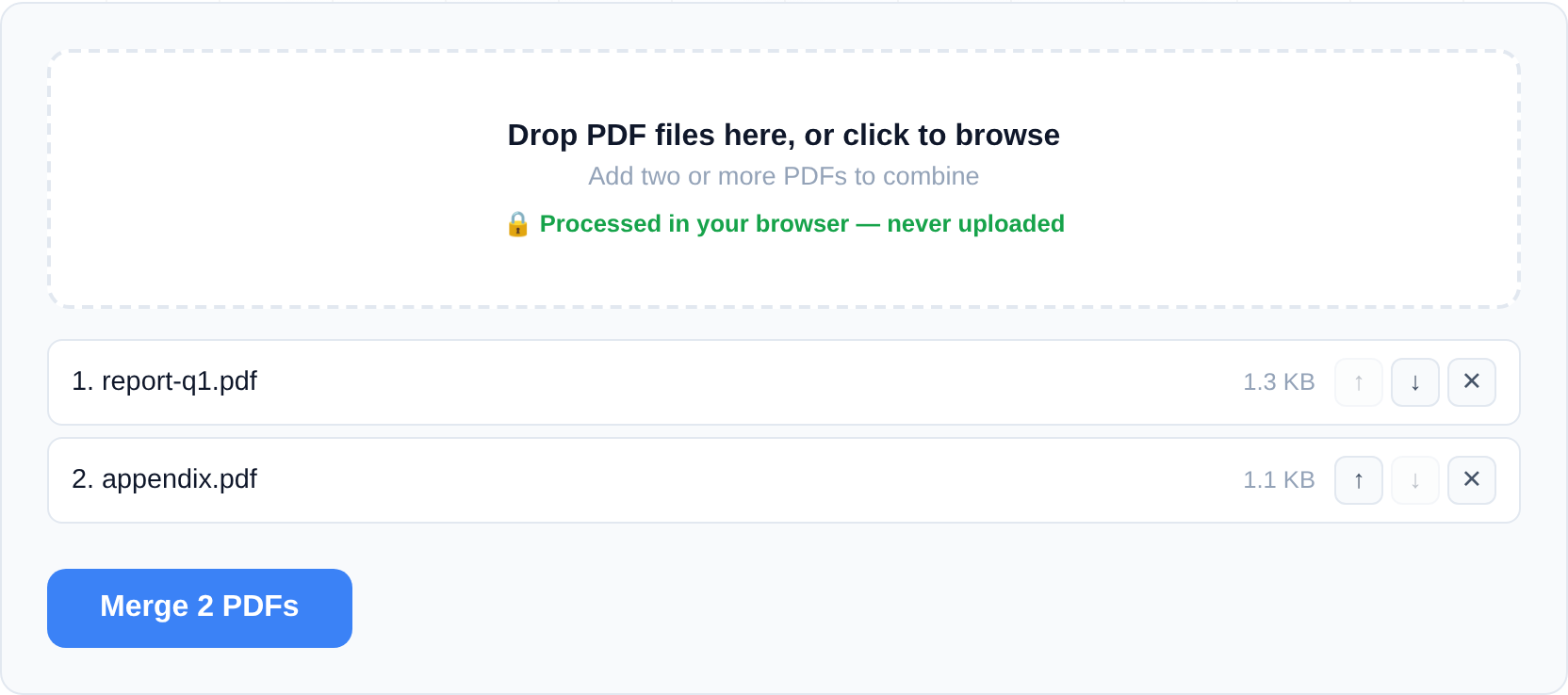
How to merge PDFs
- Open the Merge PDF tool in your browser. Nothing to install.
- Drag two or more PDF files onto the drop area, or click it to browse and select them from your device.
- Check the order of your files. This is the order they'll appear in the final document.
- Use the up and down controls next to each file to rearrange them until the sequence is exactly what you want — say, cover letter first, then the report, then the appendix.
- Click the Merge button. The tool combines everything on the spot.
- Your combined PDF downloads automatically to your device. Open it to confirm the pages are all there and in the right order.
That's the whole process. You can merge two files or twenty; the steps are the same.
Good to know and limitations
- Order matters, and you control it. The final document follows the top-to-bottom order shown on screen, so reorder before you click Merge.
- No file-size cap from us. We don't impose a limit on how big your PDFs can be. The only real ceiling is your own device's memory, since all the work happens locally. Very large files on an older phone may feel slow.
- Password-protected PDFs need to be unlocked first. If a file is encrypted, open it in a PDF reader, remove the password (or save an unlocked copy), and then merge that version.
- No account, no watermark, no upload. You won't be asked to register, and nothing gets stamped onto your pages.
If you need to do more than merge — reordering pages inside a single document, editing, or annotating — take a look at Pyntra, our fuller-featured editor. And if you later need to pull specific pages back out of your merged file, the Split PDF tool is the companion to this one.
Common merging scenarios and how to handle them
Combining scanned batches. Scanners often save each page — or each side of a double-sided document — as its own PDF. Drop the whole batch in at once, then sort them in the file list before merging. If a scan came out upside down, run it through Rotate PDF first and merge the corrected copy.
Assembling an application or submission pack. Cover letter, CV, certificates, references: portals frequently insist on "one PDF". Merge them in reading order and give the output a clear name before you upload it. If the pack comes out too large for the portal's size limit, pass the merged file through Compress PDF afterwards.
Adding a signed page back into a contract. Print-sign-scan workflows leave you with the original contract plus a one-page scan of the signature page. Extract everything except the unsigned page with Split PDF, then merge the signed scan into its place.
Troubleshooting
- The merge button stays disabled — you need at least two files. A single PDF has nothing to merge with.
- One of the files is rejected — it is probably password-protected. The tool can't read encrypted PDFs, so unlock the file first (you need to know its password) or open it in Pyntra, which handles encrypted documents.
- The page runs out of memory on a phone — merging several very large scans can exceed a phone browser's memory since everything is processed locally. Retry on a desktop browser, or compress the largest inputs first.
How a browser-based merger differs from upload-based tools
Most "free" online PDF mergers work the same way under the hood: you upload your files to their server, the server stitches them together, and you download the result. That round trip is where the differences that matter to you show up.
| What to check | Tekivex Merge PDF | Typical upload-based mergers |
|---|---|---|
| Where your files are processed | In your browser, on your device | Uploaded to the provider's servers |
| A copy left on someone's server | None — nothing is sent | Yes, until their retention window clears it |
| Watermark on the free result | Never | Sometimes, unless you upgrade |
| Account or email to start | None | Often required after a few free tasks |
| Daily task cap | None | Free tiers are commonly capped |
| Works with no connection after the page loads | Yes | No — every step needs the server |
The practical takeaway: if a document is sensitive — a contract, medical record, or anything with personal data — a tool that never uploads removes a whole category of risk. There's no server copy to breach, subpoena, or forget to delete. (For the full explanation, see why browser tools keep files private.)
Frequently asked questions
Can I merge PDFs on my phone?
Yes — Merge PDF runs in any modern mobile browser, no app to install. The one caveat is memory: phones have less of it than laptops, and because the whole merge happens on your device, combining several large scans can occasionally exhaust a mobile browser. If a merge stalls on your phone, do it on a desktop or compress the largest files first.
Can I merge just a few pages from each file instead of the whole documents?
Merge combines entire files in the order you set. To cherry-pick pages, do it in two steps: use Split PDF to extract just the pages you want from each source into smaller files, then merge those. For heavier page-level editing — reordering pages inside one document, deleting some, inserting others — Pyntra is the fuller editor.
Does merging lower the quality of my PDFs?
No. Merging copies each page across exactly as it is — same resolution, same text, same embedded fonts. Nothing is re-encoded or downsampled, so your merged file looks identical to the originals. (Quality only changes if you deliberately run the result through Compress PDF afterwards to shrink the file size.)
Should I merge first and then compress, or compress first and then merge?
Merge first, then compress. Compressing the single combined file lets the tool deduplicate shared resources — repeated fonts and images across your documents get stored once instead of many times — so you usually get a smaller final file than if you compressed each input separately beforehand.
What if my merged file is rejected by an upload portal for being too large?
Portals that demand "one PDF" often also cap the file size. Merge your files as normal, then pass the result through Compress PDF to bring it under the limit before you submit.
Your files never leave your browser — merging happens entirely on your own device.