You photograph a receipt or a form with your phone held upright. The photo looks right in your gallery, right in your messaging app, right in your browser. Then you turn it into a PDF and the page comes out lying on its side. Nothing is wrong with the photo, and you did nothing wrong either. The problem is a small piece of information that some converters read and others ignore.
How your phone stores a portrait photo
A phone camera's sensor has one natural shape, and the phone usually saves the pixels the way the sensor captured them. When you hold the phone upright, it does not rotate the pixels. It saves them as captured and adds a note to the file saying how the picture should be turned for viewing.
That note is the Orientation tag in the photo's EXIF data, the metadata block that also records the date and camera model. It has eight possible values. Value 1 means "already upright". Value 6, which is what we built our portrait test photo with, means "turn this 90° clockwise to view it". Values 3 and 8 are the other turns, and values 2, 4, 5 and 7 also flip the picture like a mirror.
Gallery apps read the tag and turn the photo before showing it. So do web browsers: the CSS property that controls this, image-orientation, defaults to from-image, which MDN describes as using the EXIF information "to rotate the image appropriately" (MDN: image-orientation). That is why the same file looks correct almost everywhere you look at it.
Why the PDF comes out sideways
A PDF page does not read EXIF tags. When a converter puts a JPEG into a PDF, the PDF viewer draws the pixels exactly as stored. If the converter does not apply the Orientation tag itself, the stored pixels are what you get: the photo on its side, upside down, or mirrored, depending on the tag.
What we tested
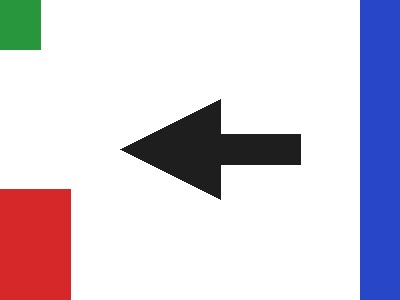
We built one test picture with no symmetry: an arrow pointing up, a red block top left, a green block top right and a blue bar along the bottom. We then saved it eight times, once for each Orientation value, storing the pixels the way a camera would so that every version looks identical in a gallery. Then we converted all eight to PDF three ways and compared each PDF page with the upright picture.
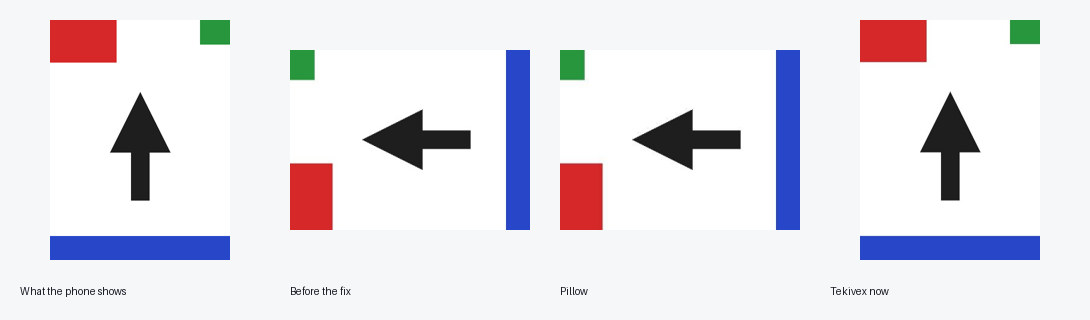
| Converter | Correct pages out of 8 | What went wrong |
|---|---|---|
| Tekivex JPG to PDF before our fix | 1 | Only the photo with no rotation came out right. Turned photos came out on their side or upside down, and mirrored ones came out mirrored. |
| Pillow 12.1.1, a widely used Python imaging library, saving straight to PDF | 1 | The same as above. |
| Tekivex JPG to PDF now | 8 | None. Every page matched the upright picture. |
The test ran on 23 October 2026. A page counted as correct when it had the same shape as the upright picture and differed from it by less than 3 on the 0–255 colour scale on average. The correct pages differed by 0.63, which is JPEG compression noise. The portrait test photo, raw results and test script are published, so you can repeat it.
We first found this bug in our own converter on 10 October 2026 and fixed it that day; this comparison shows the old and new behaviour side by side. The fix places the original JPEG on the page with the right turn applied, so the photo is not re-compressed and loses no quality.
How to fix a sideways page
- Use a converter that reads the tag. Our JPG to PDF tool now does, without re-compressing your photo. Check any other converter with one portrait photo before you use it for a batch.
- Rotate the finished PDF. If you already have a sideways PDF, Rotate PDF turns the pages without touching their content. In our test of that tool the page content came out byte-for-byte identical.
For developers
If you build PDFs from photos in Python with Pillow, apply the tag first. Pillow's ImageOps.exif_transpose() turns the image to match its Orientation tag and removes the tag, so a converter that ignores EXIF still gets an upright picture (Pillow documentation). This re-encodes the picture when you save it. If you need the original JPEG bytes, apply the turn as a transform when placing the image instead, as our converter now does.
Frequently asked questions
Why does the photo look fine everywhere except the PDF?
Galleries and browsers read the Orientation tag and turn the picture for you. A PDF viewer only draws the pixels it is given, so the converter has to apply the tag.
Does fixing the orientation lower the quality?
Not if it is done as a transform, which only changes how the stored image is placed on the page. Re-saving the photo as a new JPEG does re-compress it.
What about HEIC photos?
Our test used JPEG, because our converter accepts only JPEG and PNG. Export HEIC photos as JPEG first.
How this guide was made
This guide was drafted with an AI assistant from the test described above, then checked line by line against the test's published results. It is credited to the Tekivex team rather than to a named person because no individual author wrote it or repeated the test on their own phone. If you find a mistake, tell us and we will correct it and note the change.