Photos and scans are easy to take but awkward to send. A landlord wants your ID as a PDF, not three separate phone pictures. An expense system won't accept a folder of JPGs, but it happily takes one tidy PDF of your receipts. Tekivex's JPG to PDF tool turns your images into a single, clean PDF document — one image per page — right inside your browser, with no uploading.
It's especially handy for scans, ID cards, and receipts, where you want everything bundled into one file you can email or upload in a single click.
How to convert JPG images to a PDF
- Open the JPG to PDF tool in your browser. No install, no sign-up.
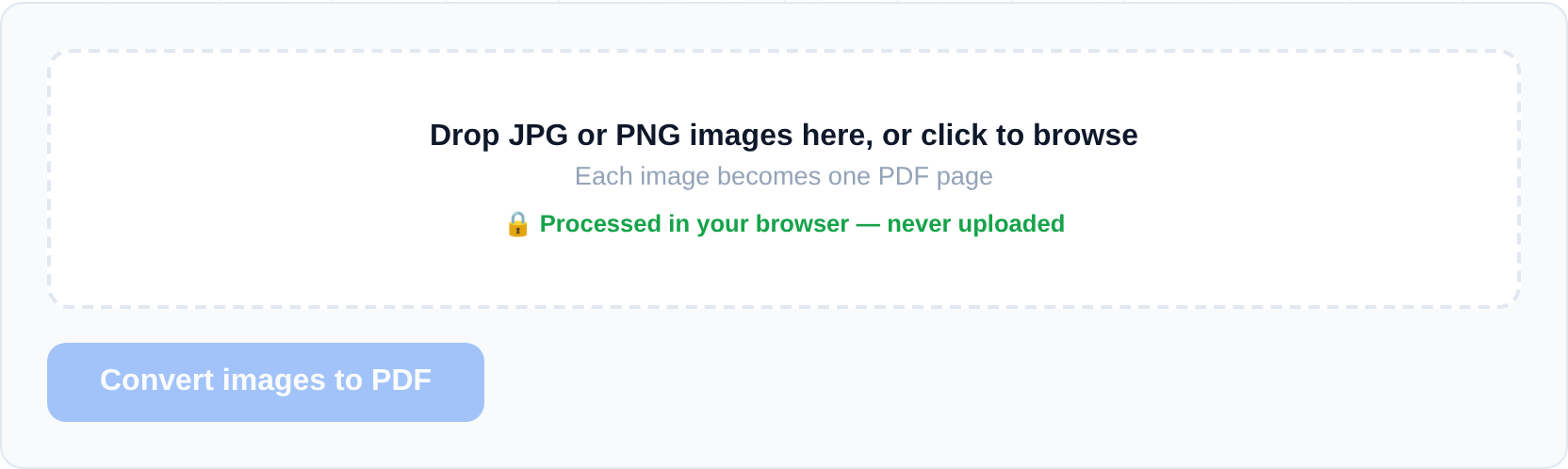
- Drag your images onto the drop area, or click to browse and select them from your device. You can add several at once.
- Check the order of the images. Each one becomes its own page, top to bottom.
- Reorder the images until the sequence is right — front of the ID before the back, receipts in date order, and so on.
- Convert. The tool assembles all your images into a single PDF, sizing each page to match that image's shape (aspect ratio) so nothing gets stretched or squashed.
- The finished PDF downloads to your device, ready to send.
Good to know and limitations
- One image per page. Each picture becomes a full page in the PDF, in the order you set.
- Pages fit the image. Every page is sized to its image's aspect ratio, so a tall receipt and a wide document each keep their natural proportions.
- Supported formats: JPG/JPEG and PNG only. If your files are HEIC, WebP, or TIFF, export them to JPG or PNG first. Most phones can save or share a HEIC photo as a JPG — check your camera or share settings — and then you're good to go.
- Great for scans, IDs, and receipts. Anything you'd photograph and need as a document works well here.
If you later want to combine that PDF with others, use Merge PDF; to pull specific pages back out, try Split PDF. For deeper document editing, there's Pyntra.
Making phone scans look professional
A few habits turn a folder of phone pictures into a document people take seriously. Shoot straight down, with the page filling the frame — skewed photos read as sloppy in a PDF. Use daylight or a desk lamp from the side to kill shadows; the camera flash directly above a glossy page creates a washed-out hotspot. And crop each photo to the page edges before converting, since the PDF page takes each image's exact shape — a receipt photographed against a dark table becomes a page that is mostly table.
For multi-page documents, photograph the pages in order and check the sequence in the tool's file list before converting: reordering takes two seconds there and is annoying to fix afterwards. For double-sided documents like ID cards, the convention most recipients expect is front first, back second — the same order a photocopier would produce.
What to do when the PDF comes out too large
Phone cameras produce large images — a 12-megapixel photo per page adds up fast, and a twenty-receipt expense bundle can exceed an email attachment limit. Two fixes: photograph documents at a lower resolution if your camera app allows it, or convert first and then run the result through Compress PDF, which re-optimises the page images at a quality you choose and shows the size saving before you download.
Frequently asked questions
How do I combine several photos into one PDF?
Drop all the images into the JPG to PDF tool at once, arrange them in the order you want, and convert. They're bundled into a single PDF with one photo per page.
My phone photos are HEIC — can I still use this?
Not directly, but it's an easy fix. HEIC, WebP, and TIFF aren't supported, so export your photos as JPG or PNG first. Most phones can share or save a HEIC image as a JPG from the photo's share or export options, and then you can drop it in.
Will my images be stretched or distorted?
No. Each PDF page is sized to match its image's aspect ratio, so your pictures keep their original proportions instead of being forced into a fixed page shape.
Is it safe to convert photos of an ID card or passport this way?
It's one of the safest ways to do it — precisely because nothing is uploaded. Your browser turns the image into a PDF locally, so the file never reaches a server and there's no third-party copy of your ID to worry about. For anything that sensitive, avoid upload-based converters entirely; here's how in-browser tools keep files private.
Your images never leave your browser — the conversion happens entirely on your own device.